How to Update a Food Order
Note: the creating, viewing, updating or deleting of a food order within My Recipe Manager requires the user to have the appropriate security (role) assigned to them. To view the list of available roles and what they allow a user to do click here.
Warning: do not change 'Purchased by Food Technician' from 'No' to 'Yes' until after the shopping list for this order has been finalised i.e. created, printed, purchased and distributed. If you change this to 'Yes' the food order will not appear in your shopping list regardless of you changing 'Add to Shopping List' to 'Yes' (ticking the box).
To update a food order follow the instructions below:
- Select the menu titled 'Food Orders' (refer to the image below). If you cannot see this menu then you do not have the appropriate security role assigned to your user account - please contact the person at your school who manages the schools user accounts.
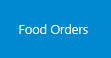
or from the 'Home' page select the below menu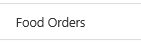
- When the main 'Food Order' page opens, locate the food order that you wish to update. Hover your mouse over the food order and a three dotted icon will appear (refer to the image below).

- Select the three dotted icon with your mouse pointer and the food order will display a heavy border around it to indicate that this food order has been selected. A set of menus will also appear (refer to the image below).
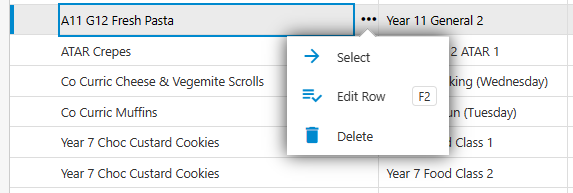
- To update the food order select the menu titled 'Select' (refer to the image above).
- This will open the 'Review Food Order' form. Select the 'Edit' button at the bottom of the form (refer to the image below).
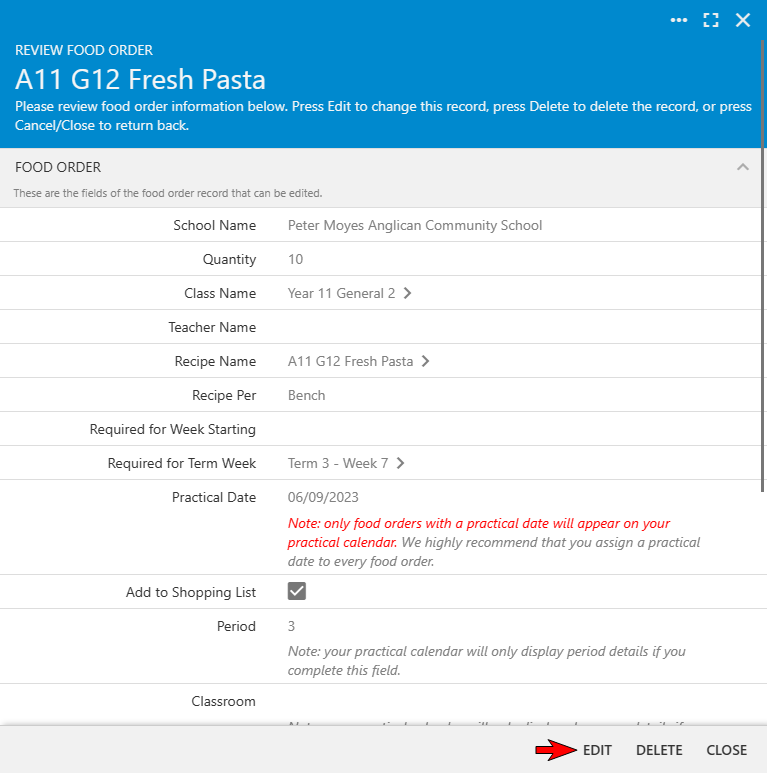
- You can now update any of the below fields (refer to the image below).
- Quantity
- Class Name
- Teacher Name
- Recipe Name
- Required for Week Starting (if using week starting dates for your food orders) or
- Required for Term Week (if using term weeks for your food orders)
- Practical Date
- Classroom
- Add to Shopping List (We recommend that you leave this as 'no' and only change it when the recipe order needs to be purchased)
- Period
- Purchased by Food Technician: this should only be updated by the Food Technician (or the person who orders).
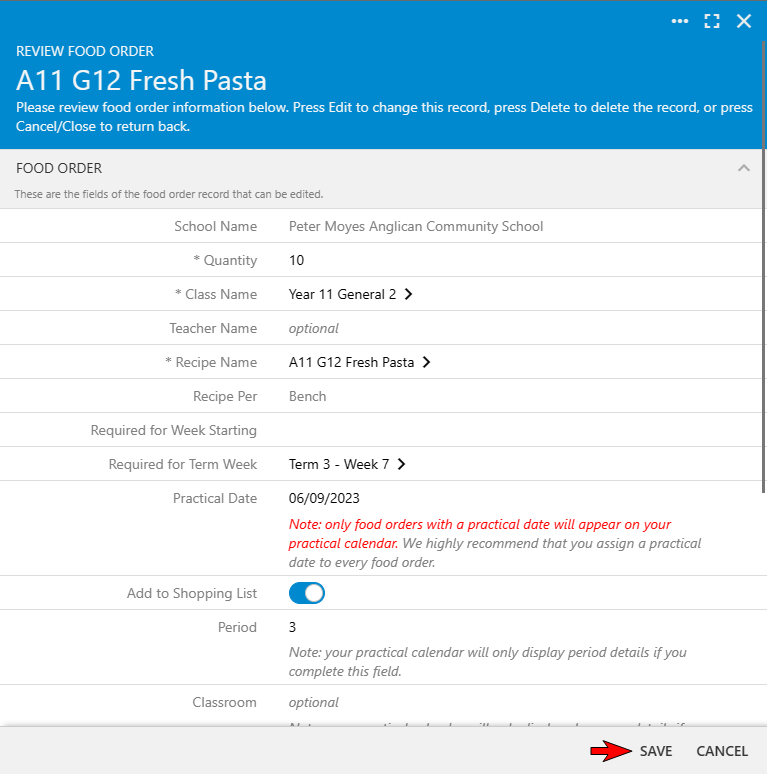
- Once you have made your changes select the 'Save' button to save those changes or select the 'Cancel' button to retain the original information that was on the food order prior to you selecting the 'Edit' button.